Login to your employer profile

If you have forgotten your password, click on ‘I forgot my password’.

Select your venue

Click on Availability tab

To view requests by day, select the venue and select the date you wish to view

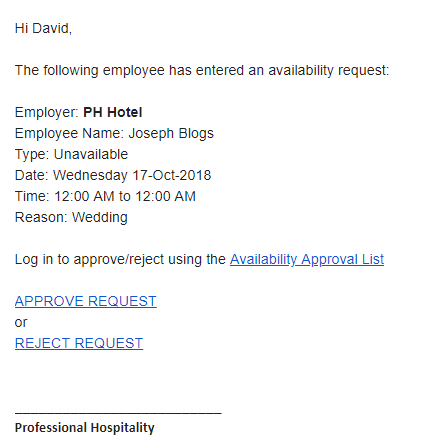
You will also receive email notification when an availability request has been submitted from an employee and you can click on the links in the email to view, approve, reject and even edit the request.
To approve individual requests by date and time in the Timeline, double right click on the request (orange pending line) and select either by occurrence (one off date) or series (all dates requested)

Here you can edit, approve or reject the request. All fields are editable.

To refresh this screen, click on the refresh icon

You can also add availability/unavailability on behalf of employees by clicking on the ‘+’ icon.

To view by Day, Work Week, Week and Month by Employee, click on the Calendar tab

To view all requests and approved unavailable approved requests at a glance and finalise approval or reject, click on Approvals tab.
